How Hexbot works
From install to a crew that knows your work, in 12 steps. Every picture is a screenshot of the app.
- 1
Install one app
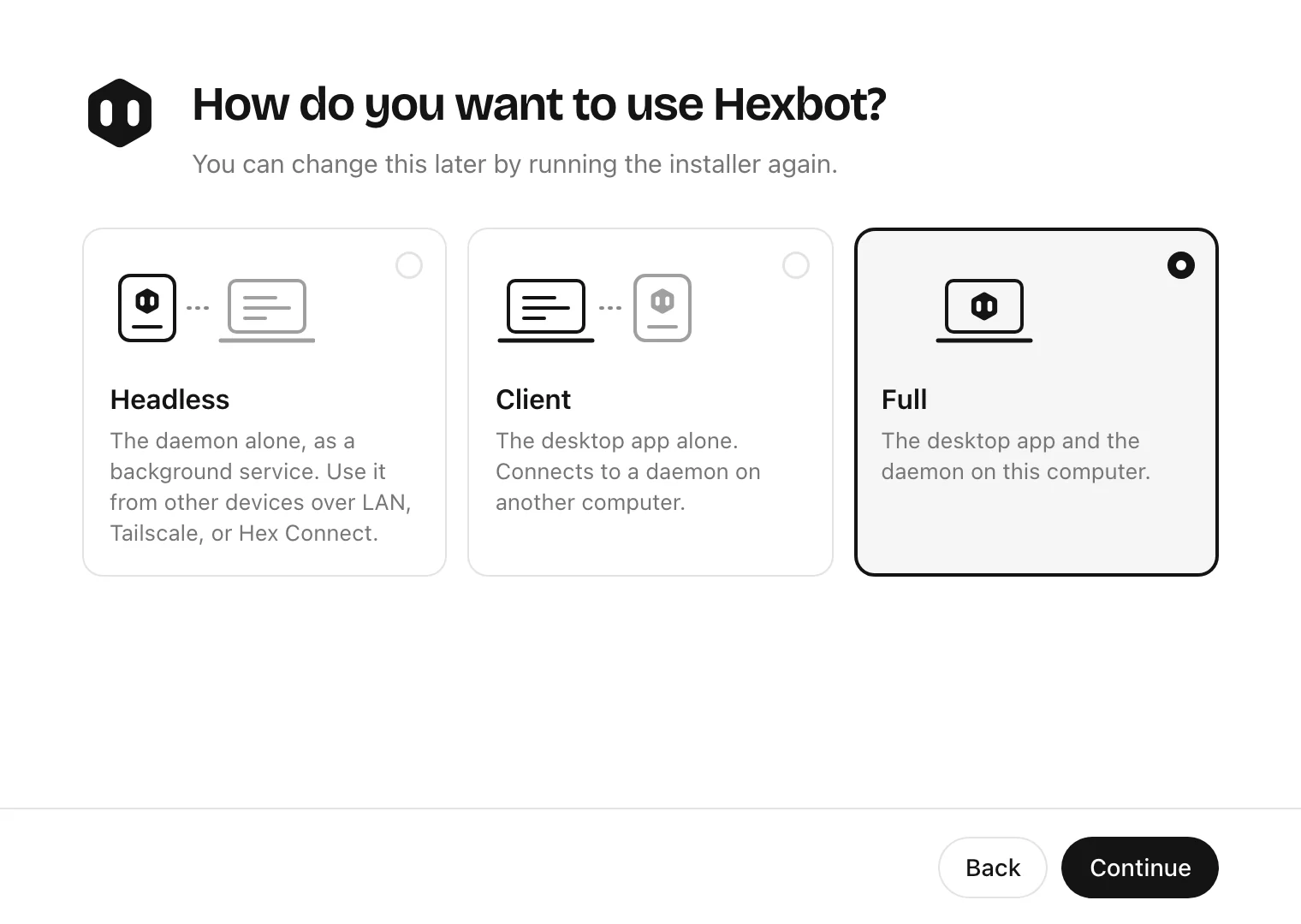
Download the Hexbot Installer for Mac or Linux, or run one line in a terminal, and choose Full. On Windows, download the Full installer (.exe). The app starts the daemon: the part that runs your bots, keeps their memory, and serves the app.
Choose Client on your other computers, or Headless to run the daemon alone on a server. The daemon keeps working when you close the window, so heartbeats, scheduled jobs, and long tasks carry on.
- 2
Connect a model
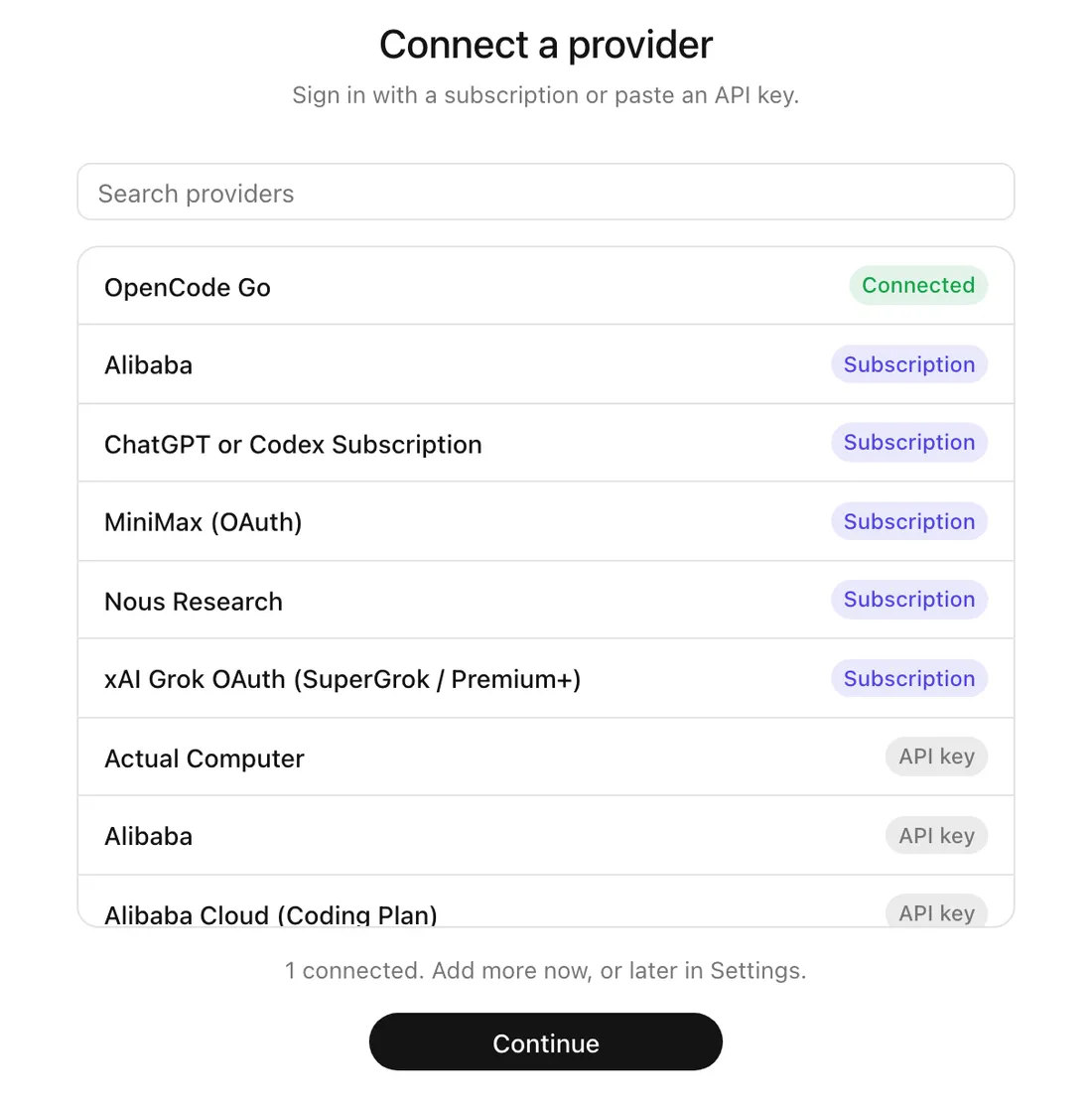
Sign in with a subscription you already have, or paste an API key. More than 50 providers are listed, and local models work too.
Pick a default model for new bots and an optional fallback for when a provider is down. Each bot can also think harder or faster, from Off to Max.
- 3
Meet HexBot
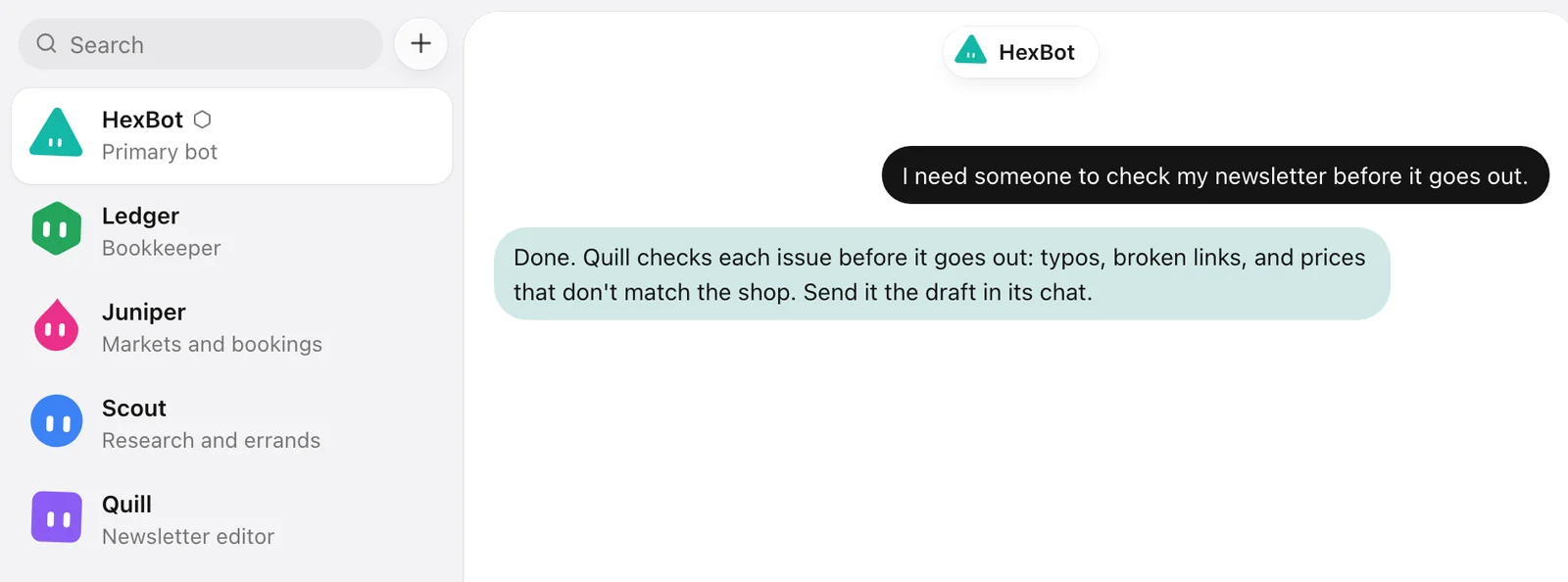
Setup ends in a chat with HexBot, your primary bot. Ask it for a bot that does a job, and it makes one. It also builds rooms, schedules work, and changes settings for you.
It always asks before deleting anything or changing a setting, even in Bypass, and it never sees your keys.
- 4
Or make a bot yourself
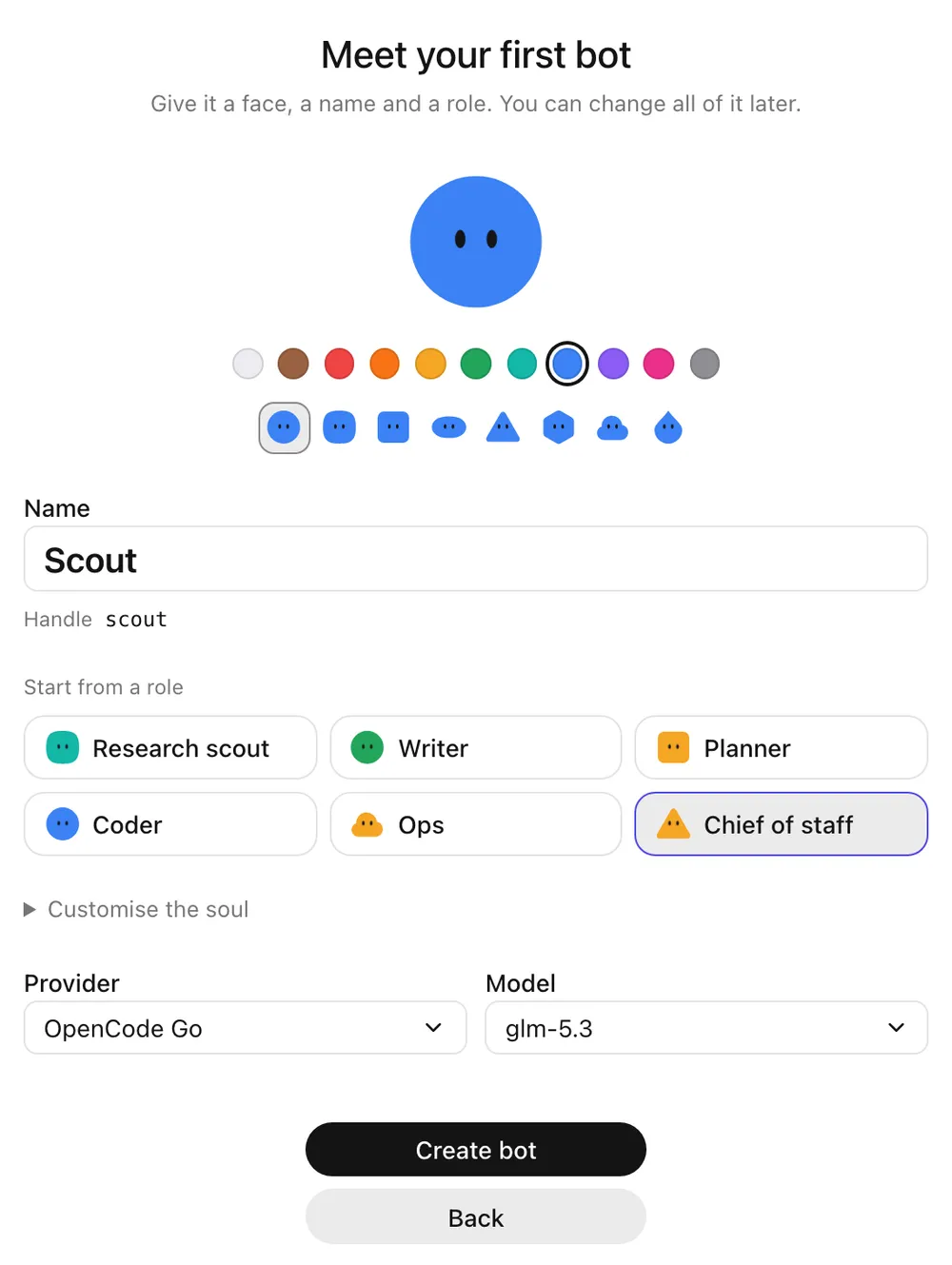
Give it a face, a name, and a starting role such as Research scout, Writer, Planner, Coder, Ops, or Chief of staff. Each bot can run on a different model.
Its face moves with the work and reacts to what happens: shy when you thank it, proud after a long job.
- 5
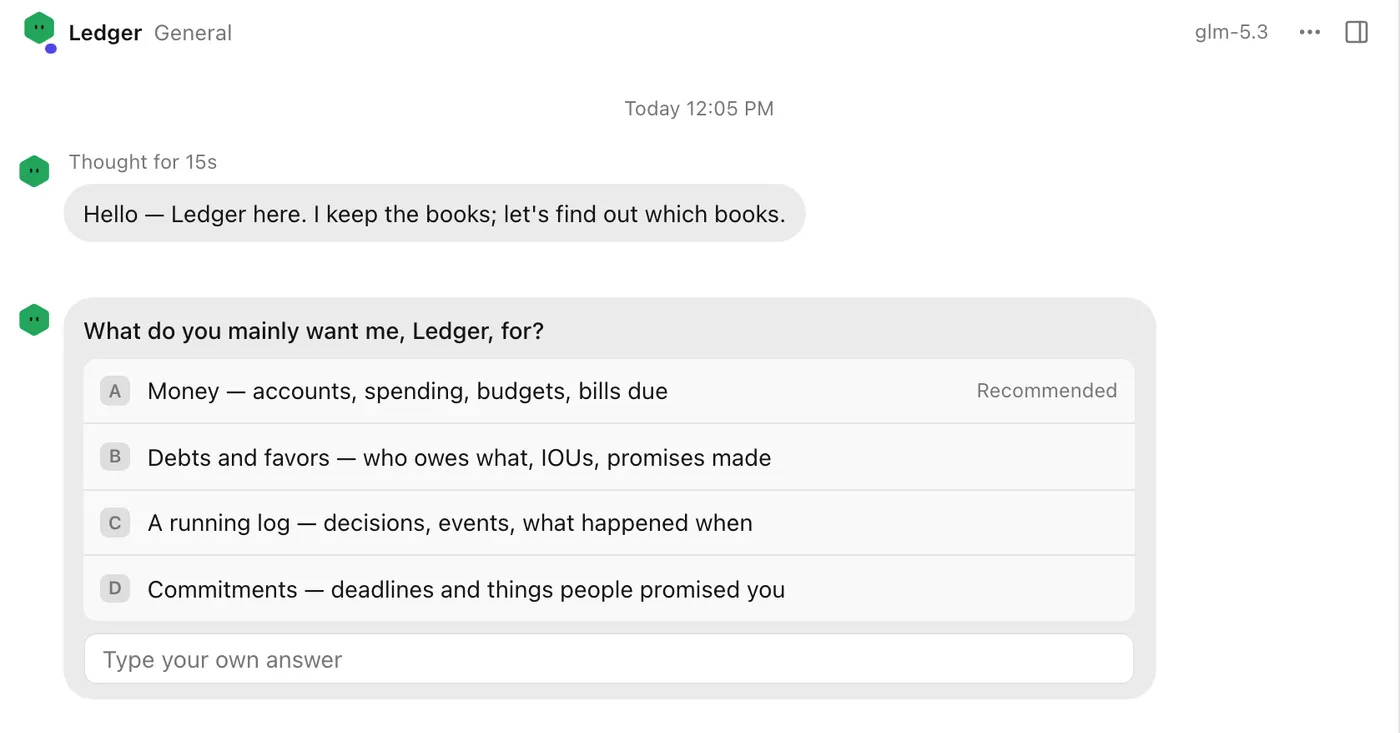
It interviews you
A new bot asks you up to three questions about the job, often with suggested answers. Then it writes its own soul (who it is and how it works) and its first memories.
You can read and edit both later. When the bot changes its soul, it tells you.
- 6
Bring bots together in a room
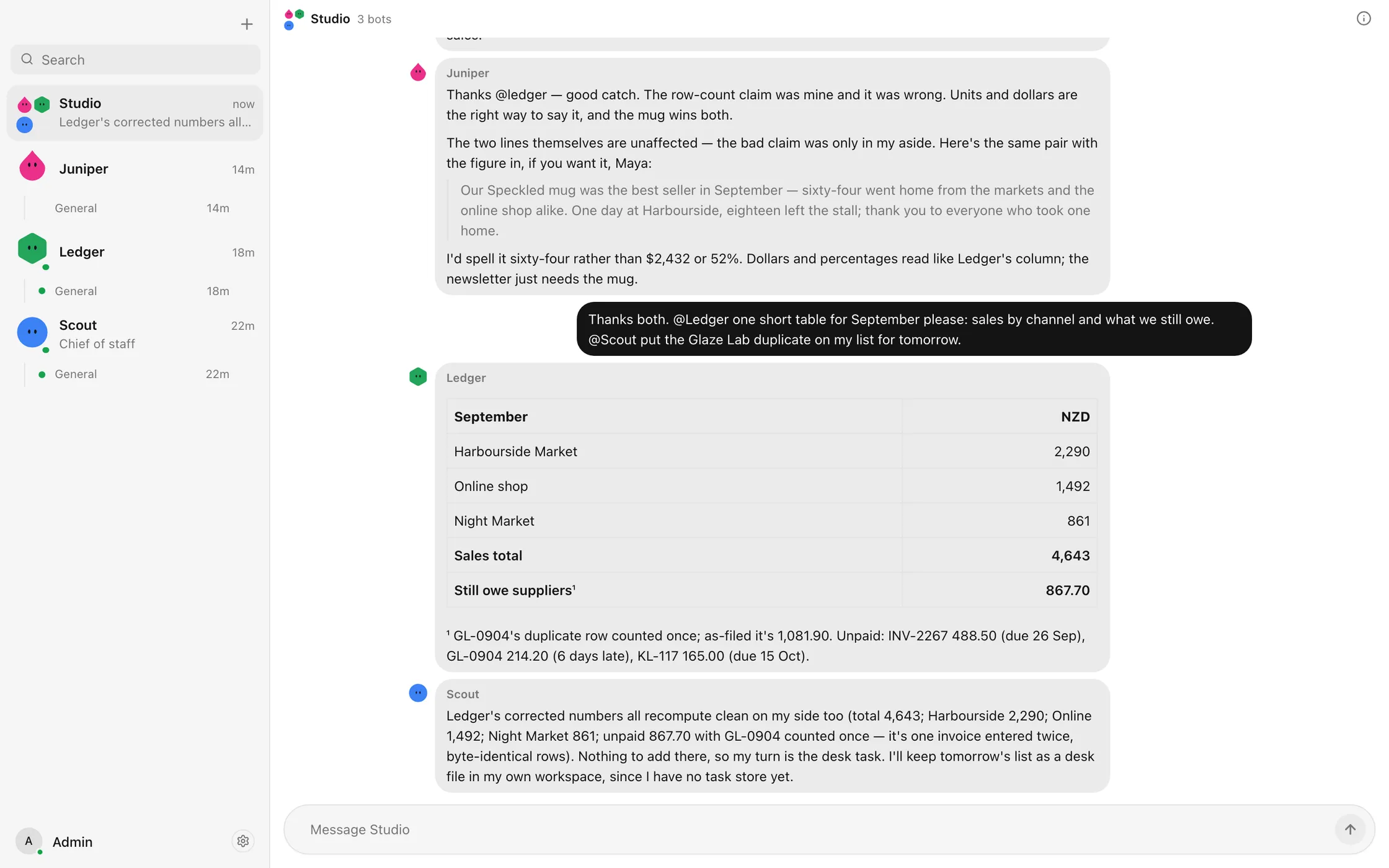
A room is a group chat for people and bots. Mention a bot and it replies. Mention nobody and the room's main bot answers. Bots can mention each other, check each other's work, and hand off.
A room caps how many bot turns follow one human message (8 by default), and you can set a token budget per room.
- 7
Bots remember and dream
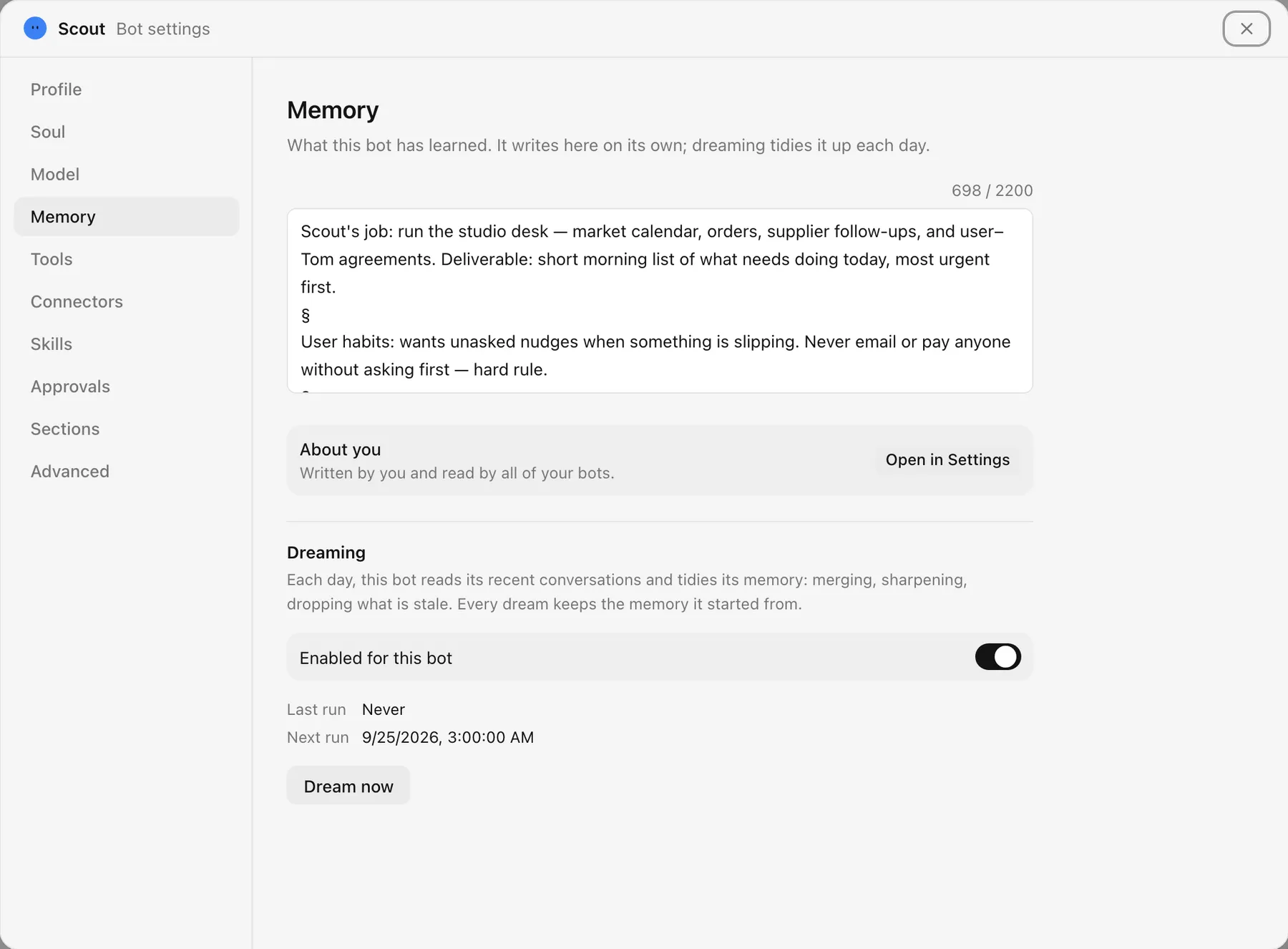
Each bot keeps its own memory as it works, and short daily notes about what happened. About you is one text you write that every bot reads.
Once a day, at 3 a.m. by default, each bot dreams: it reads the day's notes and conversations and folds what lasts into its memory, merging, sharpening, and dropping what went stale.
- 8
It keeps an eye on things
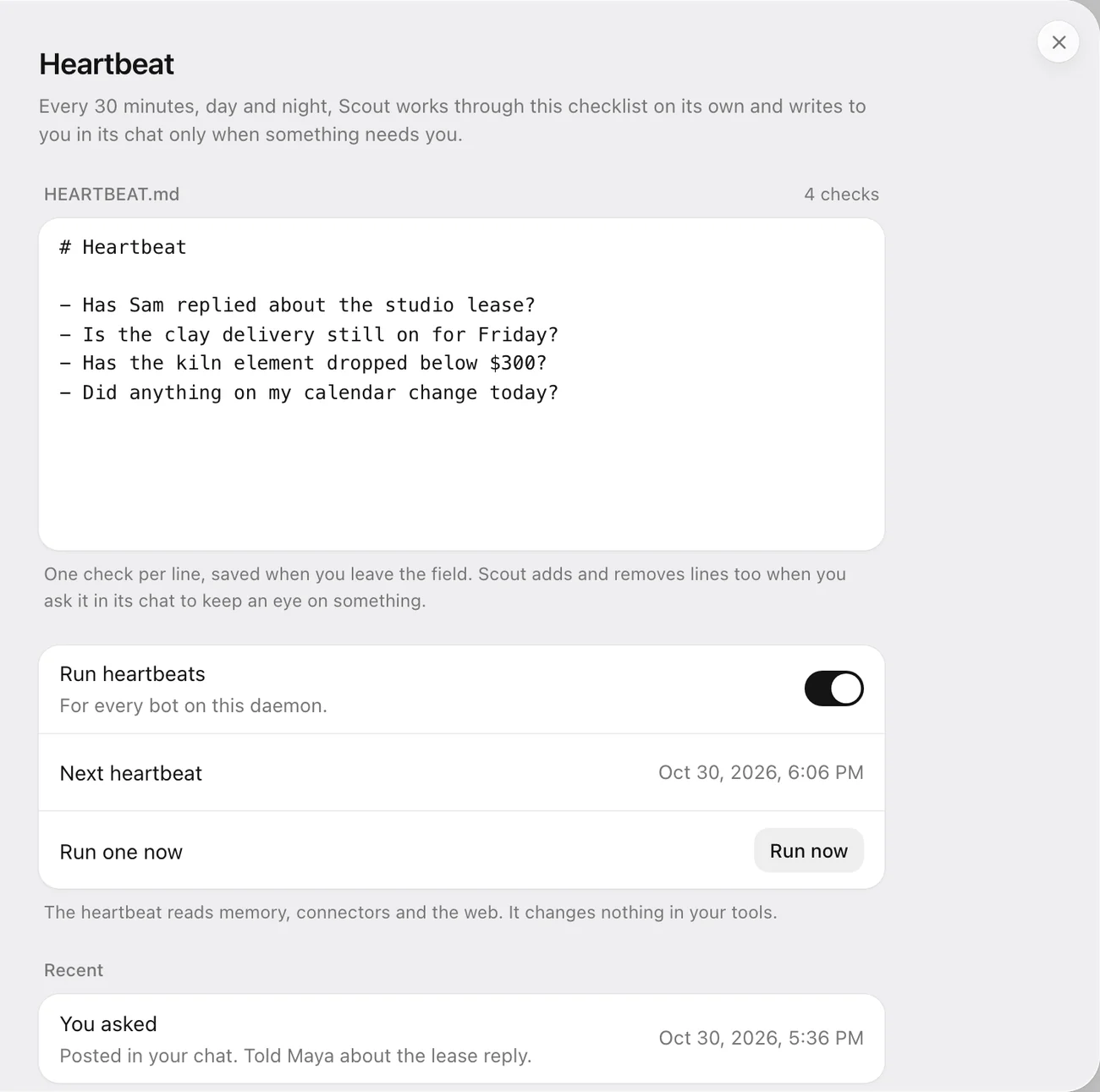
Every 30 minutes, day and night, each bot works through its heartbeat: a short checklist you write, or that it keeps when you say "let me know if…". It reads its memory, its connectors, and the web.
Most heartbeats end quietly. When something needs you, it sends one short message to its chat and your devices. An empty checklist runs nothing and costs nothing.
- 9
It uses a computer you can watch
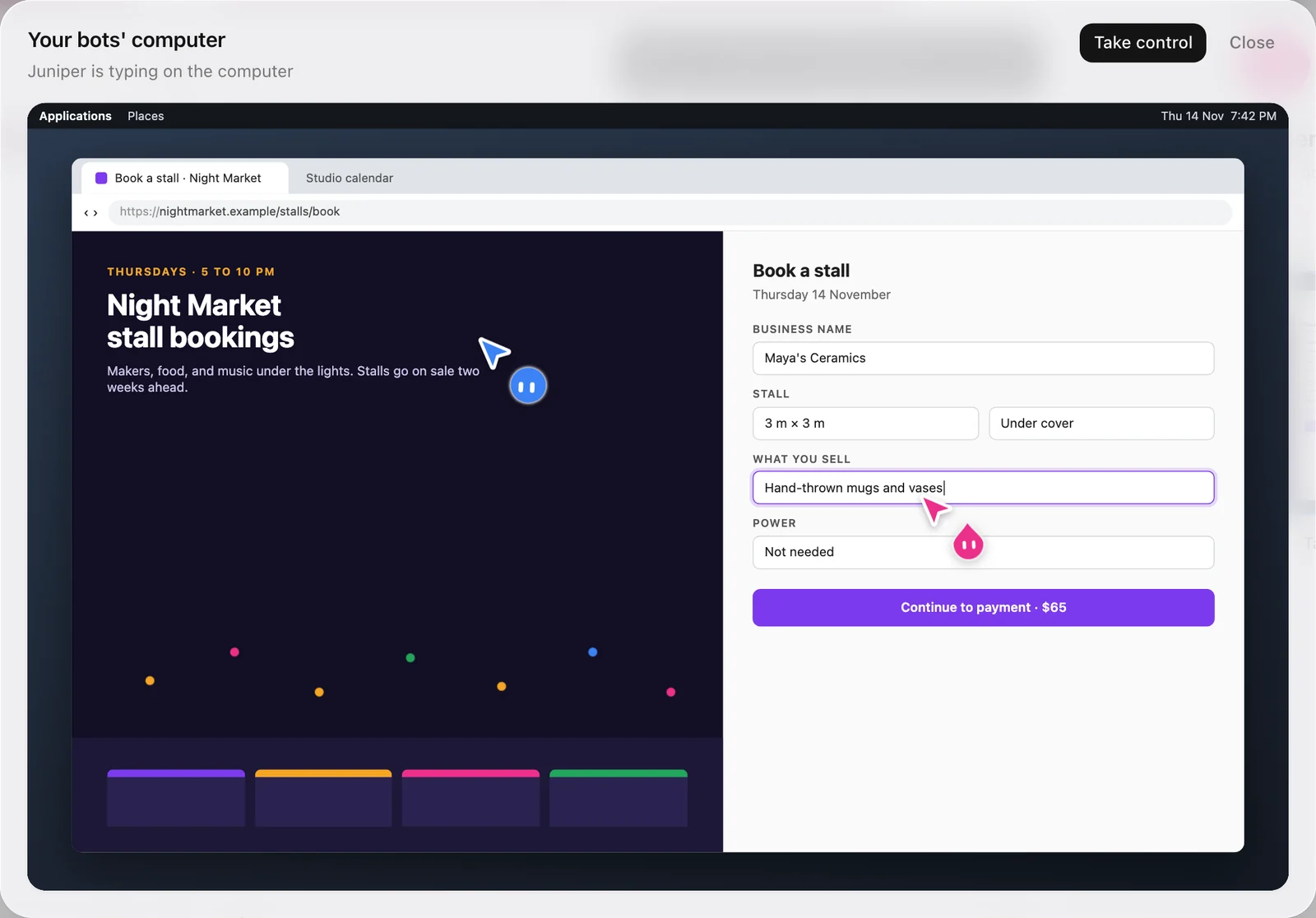
Your bots share a Linux desktop of their own, made with Cua on the daemon computer. They click and type in its browser and terminal, one action at a time, each with a cursor wearing its face.
Watch from the Computer tab or your phone, and click and type there alongside them. Choose Pause bots to have it to yourself.
- 10
It shows you, not only tells you
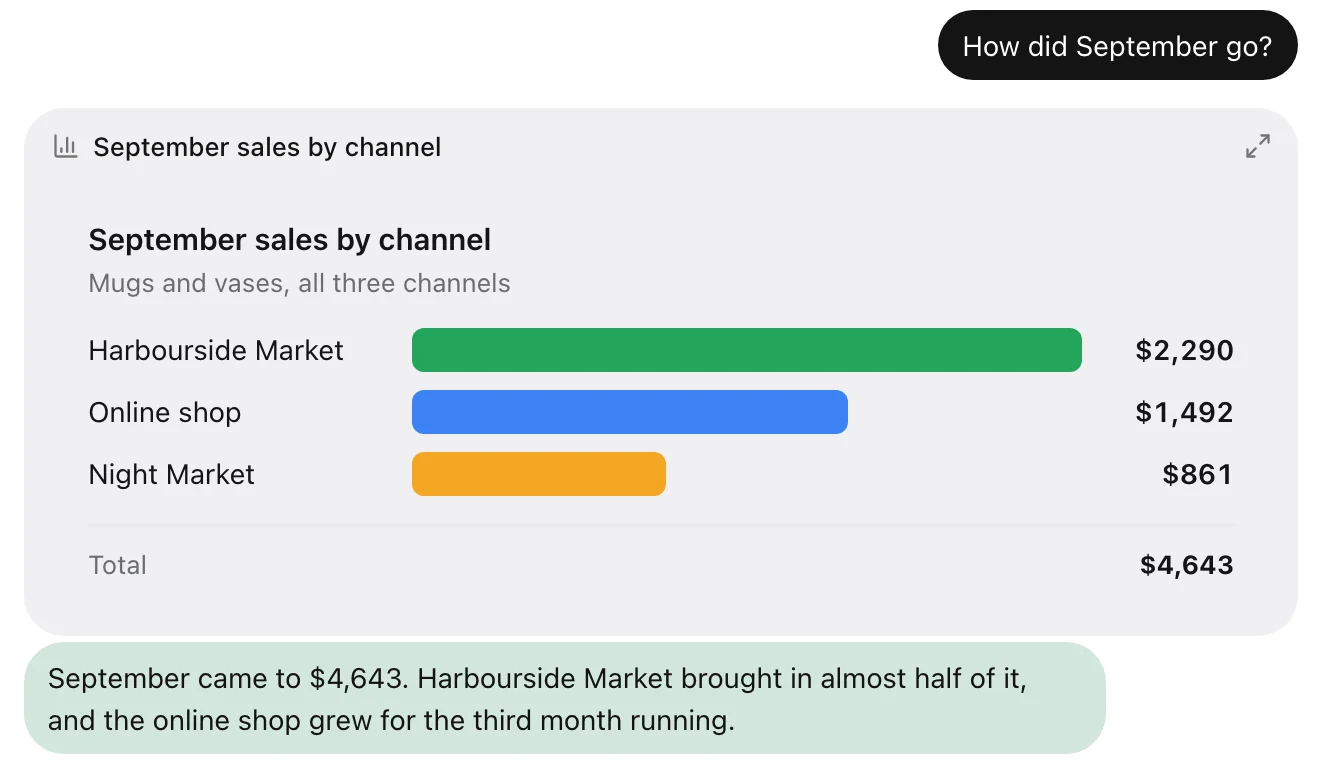
In its chat, a bot can draw a chart, table, diagram, or mockup above its reply. It stays live, so you can hover and click, and Expand opens it in a tab beside the chat.
- 11
You approve what matters
Bots work freely inside a sandboxed workspace. A step outside it, such as a command that needs the internet or a file change elsewhere, is checked by the bot's model first: routine steps run, and risky ones wait for you. That check is a judgment, not a sandbox. Manual asks before every change; Bypass asks nothing.
- 12
Reach it from any device
Pair a phone or another laptop with a one-time code on your network. Away from home, use Tailscale or Hex Connect. Every paired device can be revoked in Settings.
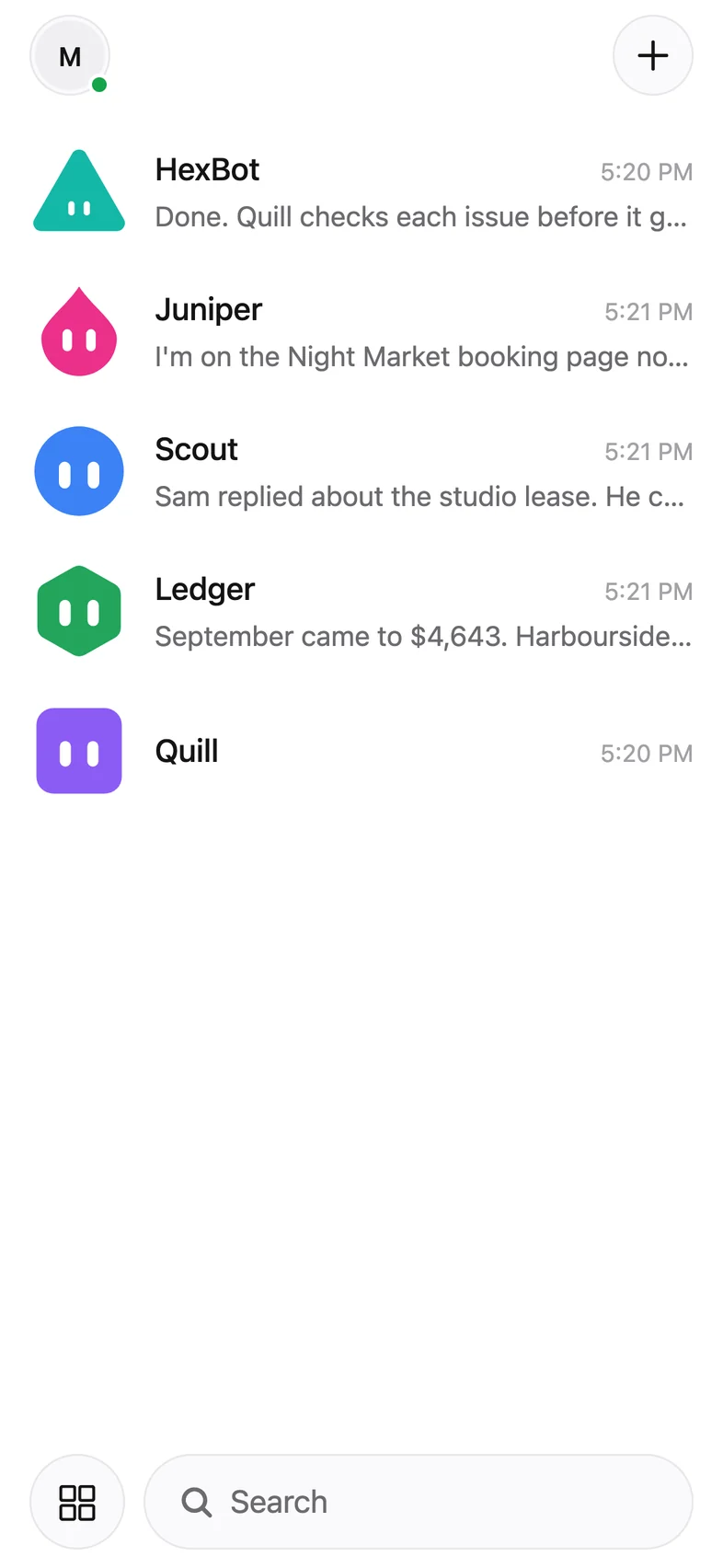
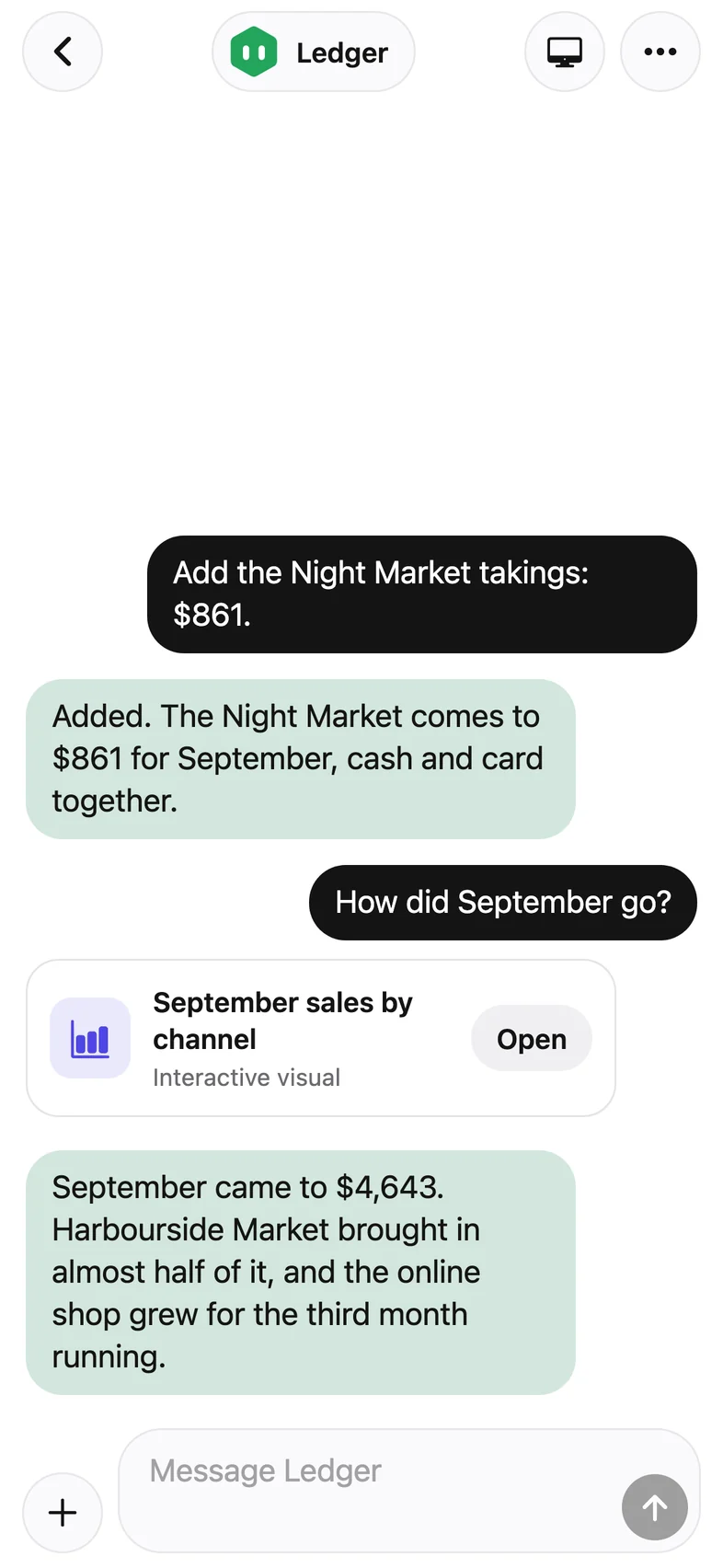
The iPhone and Android app reads like a messaging app: every chat and room in one list, with HexBot pinned at the top.
Under the hood
One daemon, written in Rust, runs every bot. Each conversation is an agent session on Pi. Hexbot began as a fork of Hermes Agent by Nous Research.
Every conversation is one long-lived session with its own context. The prompt is not rebuilt mid-conversation, so providers can reuse their cache and each turn stays cheaper.
Everything lives in ~/.hexbot on your machine. Hex Connect, if you use it, only brokers sign-in and a hostname.